Install
Create the macOS USB installer
OCLP downloads macOS from Apple, writes it to a USB drive and adds its own files so the new system patches itself after installing. Here is everything about that step.
On this page 6 sections
Short answer
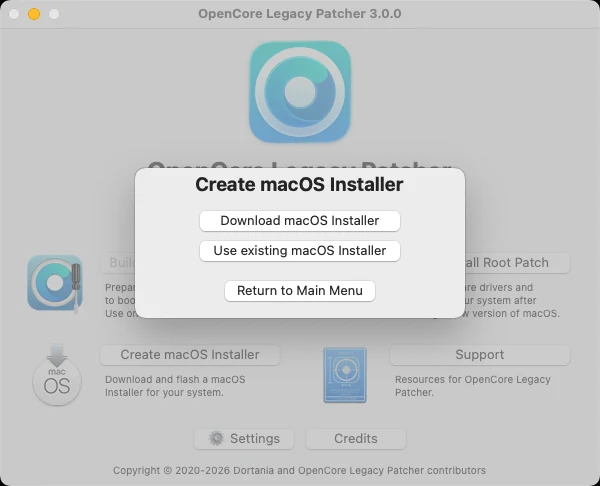
In OpenCore Legacy Patcher choose Create macOS Installer > Download macOS Installer, pick a version, then pick a USB drive of 32 GB or more; it is erased. Then use Build and Install OpenCore to put OpenCore on the same drive. If you are preparing it on another Mac, choose the target model in Settings first.
The USB drive
- 32 GB or larger. Dortania: recent Sonoma and Sequoia installers plus patches no longer fit on 16 GB. The app only lists drives larger than about 15 GB (
macos_installer_handler.py). - USB 3 is much faster to write and to boot, but any working drive is fine.
- The whole drive is erased.
- If the drive fails macOS's integrity checks (prohibited sign once the boot has started), try a different drive model.
How big is each installer?
These are the sizes of the newest installer for each macOS version in the catalog OCLP reads. The installer is written to the drive together with OCLP's own files, so allow more than the download size.
| macOS | Newest version | Build | Download size | In the OCLP installer list |
|---|---|---|---|---|
| macOS Tahoe | 26.7.2 | 25G332 | 18.4 GB | Listed by default |
| macOS Sequoia | 15.8.2 | 24H232 | 15.7 GB | Listed by default |
| macOS Sonoma | 14.8.9 | 23J631 | 13.7 GB | Listed by default |
| macOS Ventura | 13.7.8 | 22H730 | 12.2 GB | Listed by default |
| macOS Monterey | 12.7.6 | 21H1320 | 12.4 GB | After ticking “Show Older/Beta Versions” |
| macOS Big Sur | 11.7.11 | 20G1443 | 12.4 GB | After ticking “Show Older/Beta Versions” |
From OCLP 3.0.0's own installer code (AppleDB catalog), fetched 2026-11-05. By default the app lists the newest release of the four latest macOS versions; Big Sur and Monterey appear after ticking “Show Older/Beta Versions” (gui_macos_installer_download.py).
Steps
Set the target model if needed
OpenCore configurations are model-specific. In Settings, choose the target model if the USB drive is for another Mac. This also makes automatic root patching work after the install.Download macOS
Create macOS Installer > Download macOS Installer. The list shows the newest build of the four latest macOS versions (from Apple's catalog via AppleDB); tick Show Older/Beta Versions for others. Copy Link gives the direct Apple download URL.Write the installer
When the download finishes, OCLP offers to create the installer: choose your USB drive. It runs Apple's owncreateinstallmedia(whose signature it checks first, since 1.5.0) and adds OCLP's AutoPkg assets.Add OpenCore
Back in the main menu, Build and Install OpenCore, then install it to the USB drive.
Using an installer you already have
Choose Use existing macOS Installer and pick the “Install macOS …” app from Applications. You can also download the full installer from Apple's support site on a supported Mac.
Common errors
- “You don't have permission to save…” / bless failed: give OCLP Full Disk Access.
- Download stalls or fails: retry on a stable connection, or use Copy Link and download with a browser, then use the installer app.
- Drive not listed: it is too small or not formatted as GUID/GPT.
Common questions
Can one USB installer work for several Macs?
Can I make the installer on Windows?
Keep going
Something wrong or out of date on this page? Email hello@oclp.dev and we will fix it (see our corrections policy).