Fix
OpenCore Legacy Patcher problems and fixes
Paste the error message you see, or describe what happens. The decoder matches it against our catalogue of known problems, built from Dortania's troubleshooting guides and the error checks in the OCLP source code, and shows the cause, the fix and the source.
On this page 8 sections
Try
Before anything else
Most problems come from three things: booting without OpenCore (always pick EFI Boot first), missing root patches after a macOS update (run Post-Install Root Patch), and an OCLP app older than your macOS (update the app, rebuild OpenCore). Check those first.Booting
This version of Mac OS X is not supported on this platform
Prohibited sign (🚫) or “This version of Mac OS X is not supported on this platform”
- Why it happens
- macOS started without OpenCore, so it saw your real, unsupported model. If the sign appears only after the boot has started, the USB installer failed macOS's integrity checks.
- Fix
- Restart holding Option and choose EFI Boot first, then the installer or your disk in the OpenCore picker. Once OpenCore has booted once, the Mac remembers it until an NVRAM reset. If the sign appears mid-boot, recreate the installer on a different USB drive, ideally another model.
- Source
- Dortania, Booting troubleshooting
The Mac only boots with the USB drive plugged in
- Why it happens
- OpenCore is still only on the USB drive. OCLP does not install it to the internal disk during the install.
- Fix
- In OCLP, choose Build and Install OpenCore, then Install OpenCore and pick the internal disk. Restart holding Option and choose the internal EFI Boot once, so the Mac remembers it.
- Source
- Dortania, Booting troubleshooting
The Mac boots into Recovery again and again
- Why it happens
- OpenCore set NVRAM variables for Apple Secure Boot, which confuse the Mac when it starts without OpenCore. A modified system volume can also cause it.
- Fix
- Boot through OpenCore again, or, if you are removing OCLP, uninstall OpenCore and reset NVRAM.
- Source
- Dortania, Booting troubleshooting
Command-R shows a prohibited sign instead of Recovery
- Why it happens
- Recovery started without OpenCore detects the unsupported Mac.
- Fix
- Boot Recovery through OpenCore: in the OpenCore picker press Space to show hidden entries and choose Recovery.
- Source
- Dortania, Booting troubleshooting
Installing macOS
The installer keeps restarting into the start of setup
- Why it happens
- After a restart, the Mac booted the USB installer again instead of the half-installed system.
- Fix
- Restart holding Option, choose EFI Boot, then the grey disk named macOS Installer or the name you gave your disk. Repeat after every restart until setup finishes.
- Source
- Dortania, Booting OpenCore and macOS
Your Mac needs a firmware update in order to install to this Volume
“Your Mac needs a firmware update in order to install to this volume”
- Why it happens
- The installer thinks your firmware lacks full APFS support.
- Fix
- In OCLP's Settings, set SMBIOS patching to Moderate or higher, rebuild OpenCore, install it to the USB drive again and boot the installer through it. Also make sure you installed the newest macOS Apple offers for your Mac before using OCLP, which brings the newest firmware.
- Source
- Dortania, Booting troubleshooting; upstream issue #634
An error occurred preparing the software update
“An error occurred preparing the software update”
- Why it happens
- Happens in the second phase of the installer (black screen with Apple logo). Dortania says the cause is unknown.
- Fix
- Restart into macOS Installer (the second phase) through OpenCore again. It often goes through after several attempts.
- Source
- Dortania, Booting troubleshooting
Less than a minute remaining
Stuck on “Less than a minute remaining…”
- Why it happens
- Usually not stuck: this stage does heavy cryptography, which is slow on Macs without the AES CPU instruction and on slow disks. It can take hours.
- Fix
- Wait, and do not power off. Press Caps Lock: if its light turns on, the Mac is working, not frozen.
- Source
- Dortania, Booting troubleshooting
Disk selection buttons are greyed out in the installer
- Why it happens
- A known installer bug with some languages.
- Fix
- Switch the installer language to English (reset NVRAM if the language picker does not appear). Change the language back after macOS has installed.
- Source
- Dortania, Booting troubleshooting
The Tahoe installer does not show the Fusion Drive
- Why it happens
- Users report that macOS Tahoe's installer does not support Fusion Drives.
- Fix
- Install to a single drive (ideally the SSD part, or a new SSD). Splitting a Fusion Drive erases it: back up first.
- Source
- MacRumors Tahoe on unsupported Macs thread (user reports)
The OCLP app
The bless of the installer disk failed
“You don’t have permission to save…” when creating the USB installer
- Why it happens
- macOS blocks the app from writing the installer's boot files.
- Fix
- Give OpenCore-Patcher Full Disk Access in System Settings > Privacy & Security > Full Disk Access (Big Sur and Monterey: System Preferences > Security & Privacy). Restart the app and try again; you can remove the permission afterwards.
- Source
- Dortania, Application troubleshooting
Failed to find any applicable disks
“Failed to find any applicable disks” or the internal disk is missing when installing OpenCore
- Why it happens
- OpenCore needs an EFI partition (GUID/GPT disk) or a FAT32 partition. Brand-new or never-formatted disks have neither.
- Fix
- Create a small FAT32 partition (about 100 MB) in Disk Utility, or erase the whole disk (View > Show All Devices, select the top item) when installing macOS so an EFI partition is created. The app itself notes: “Missing disks? Ensure they're FAT32 or formatted as GUID/GPT”.
- Source
- Dortania, Application troubleshooting; app text (gui_install_oc.py)
Privileged Helper Tool not found
“Privileged Helper Tool not found”
- Why it happens
- The helper that lets the app run tasks as administrator is missing, usually because the app was copied instead of installed with the .pkg.
- Fix
- Reinstall OCLP with
OpenCore-Patcher.pkgfrom the official release. Since 2.3.0 the .pkg is the only way to install the app. - Source
- Dortania, Application troubleshooting
OpenCore Legacy Patcher does not open (icon bounces in the Dock)
- Why it happens
- Varies; the error is hidden when the app is opened from Finder.
- Fix
- Run it from Terminal to see the error:
"/Library/Application Support/Dortania/OpenCore-Patcher.app/Contents/MacOS/OpenCore-Patcher". Reinstall with the .pkg if it is incomplete. - Source
- Dortania, Application troubleshooting
Root patching
Unable to resolve dependencies, error code 71
“Unable to resolve dependencies, error code 71” when root patching
- Why it happens
- Third-party kernel extensions in /Library/Extensions conflict with the patched kernel collection.
- Fix
- In Terminal:
sudo zsh, thencd "/Volumes/Macintosh HD/Library/Extensions" && ls | grep -v "HighPoint*\|SoftRAID*" | xargs rm -rf(use your disk's name), and run root patching again. If it still fails, delete everything in/Library/Developer/KDKs, then try again. - Source
- Dortania, Application troubleshooting
SystemVersion.plist build version mismatch
“SystemVersion.plist build version mismatch” when root patching
- Why it happens
- macOS has already staged an update (it modifies the system while downloading), so the system is between two versions. OCLP refuses to patch to avoid a boot failure.
- Fix
- Install the staged update if OCLP supports that version, or reinstall macOS. Then turn off Download new updates when available in Software Update's automatic update options so it does not happen again.
- Source
- Dortania, Application troubleshooting
Revert first to update or reinstall OCLP patches
“Revert first to update or reinstall OCLP patches” (formerly “Root Volume Dirty”)
- Why it happens
- Since 2.5.0, OCLP will not patch over patches from an older version that need to be removed first, to avoid a half-overwritten system. 2.5.1 reworded the old “Root Volume Dirty” message and fixed it appearing wrongly after unpatching.
- Fix
- In Post-Install Root Patch, choose Revert Root Patches, restart, then Start Root Patching. If an update is pending, install it first (see build version mismatch).
- Source
- OCLP changelog 2.5.0 and 2.5.1; detect.py
Cannot patch due to the following reasons
“Cannot patch due to the following reasons”
- Why it happens
- One of OCLP's checks failed. The app lists which: SIP enabled, FileVault enabled (pre-Tahoe on some Macs), SecureBootModel enabled, AMFI enabled, no internet for required downloads, or an unsupported macOS version.
- Fix
- Fix the listed reason: rebuild and reinstall OpenCore with OCLP's default settings (they set SIP and SecureBootModel correctly) and boot through it; connect to the internet; or turn off FileVault if the app asks. Then try again.
- Source
- detect.py (HardwarePatchsetValidation)
Everything is slow, the Dock and menu bar are grey, no transparency
- Why it happens
- Graphics root patches are not installed (or a macOS update removed them).
- Fix
- Open OCLP, choose Post-Install Root Patch and Start Root Patching, then restart. If patching needs a download (Kernel Debug Kit or MetallibSupportPkg), connect by Ethernet first.
- Source
- Dortania, FAQ (Why is my system slow?)
No Wi-Fi after installing or updating
- Why it happens
- Your Mac's Wi-Fi card needs OCLP's Legacy or Modern Wireless root patch, which a fresh install or a macOS update does not include.
- Fix
- Run Post-Install Root Patch. Without internet, OCLP installs the Wi-Fi patch first on its own; restart, connect, then run root patching again for the rest. Ethernet or a phone USB tether avoids the two rounds.
- Source
- Dortania, Post-Installation
Stuck on boot after root patching
- Why it happens
- A patch or a third-party kext stopped the system from booting.
- Fix
- Boot Recovery through OpenCore (press Space in the picker), open Terminal, run
mount -uw "/Volumes/Macintosh HD", thenbless --mount "/Volumes/Macintosh HD" --bootefi --last-sealed-snapshotto return to the unpatched system, and clear/Library/Extensionsexcept HighPoint and SoftRAID kexts. Monterey and newer only. - Source
- Dortania, Booting troubleshooting
Hardware and features
Sleep Wake Failure
The Mac restarts when it should hibernate (Sleep Wake Failure)
- Why it happens
- A known issue on some models (upstream issue #72, the most-commented issue in the tracker).
- Fix
- Turn off hibernation in Terminal:
sudo pmset -a hibernatemode 0. - Source
- Dortania, Booting troubleshooting; upstream issue #72
Volume Hash Mismatch
“Volume Hash Mismatch” alert
- Why it happens
- Usually cosmetic; it also affects supported Macs on Monterey.
- Fix
- Ignore it unless the Mac starts crashing; then reinstall macOS without importing data at first. Turning off FeatureUnlock in OCLP's settings can help on Macs with weaker memory.
- Source
- Dortania, Booting troubleshooting
Touch Bar or Touch ID stopped working after installing Sonoma or newer (2016–2017 MacBook Pro)
- Why it happens
- Erasing the whole disk during the install removes T1 functionality on these models.
- Fix
- When installing Sonoma or newer on a T1 MacBook Pro, erase only the macOS volume, not the whole disk. Then apply root patches (T1 Security Chip patch set). See Dortania's hardware troubleshooting if it is already gone.
- Source
- Dortania, Booting OpenCore and macOS; Hardware troubleshooting
illegal instruction
Apps crash with “illegal instruction”
- Why it happens
- The app uses CPU instructions (often AVX or AVX2) that older processors lack.
- Fix
- Use an older version of the app or an alternative. OCLP cannot add CPU instructions.
- Source
- Dortania, FAQ
Non-Metal Macs (2008–2011)
Firefox or Thunderbird freeze on 2011 Macs (HD 3000)
- Why it happens
- Mozilla removed HD 3000 support in Firefox 145, which can freeze 2011 MacBook Pro, MacBook Air and Mac mini models.
- Fix
- Disable hardware acceleration in Firefox and Thunderbird. If the Mac locks up, boot in Safe Mode (hold Shift at startup) to change the setting.
- Source
- Dortania, Non-Metal issues
Apps cannot ask for camera or microphone access (non-Metal Macs, Ventura 13.3+)
- Why it happens
- The patches non-Metal Macs need on Ventura 13.3 and newer break macOS's permission prompts.
- Fix
- Use the tccplus workaround described by Dortania, or stay on Monterey on non-Metal Macs.
- Source
- Dortania, Non-Metal issues
Find OCLP's logs
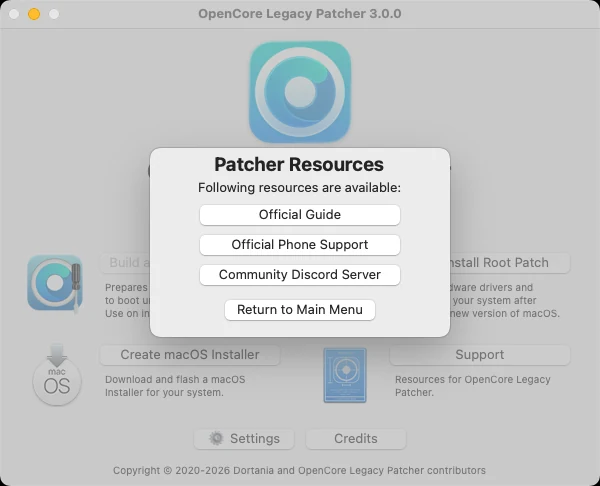
When you ask for help, include the log. OCLP writes it to ~/Library/Logs/Dortania/ (open Finder, press Cmd+Shift+G and paste the path). For boot problems, turn on Verbose in OCLP's Settings, rebuild and install OpenCore, and take a photo of the screen where it stops. Then see where to get help.
Common questions
Why did my Wi-Fi, graphics or sound stop working after a macOS update?
How do I get into Recovery on a patched Mac?
My Mac will not boot at all. Have I lost my data?
Keep going
Something wrong or out of date on this page? Email hello@oclp.dev and we will fix it (see our corrections policy).