Fix
How to uninstall OpenCore Legacy Patcher
OCLP lives in three places: the app, the OpenCore bootloader on an EFI partition, and the root patches inside macOS. You can remove any of them, or all three to return to the macOS Apple supports. Do it in the right order, or the Mac will not start.
On this page 6 sections
Short answer
To remove everything: reinstall the last macOS Apple supports for your Mac from a USB installer or Internet Recovery (erasing the disk), then reset NVRAM. To remove only parts: use Revert Root Patches in the app, run OpenCore-Patcher-Uninstaller.pkg for the app, and delete the EFI/OC and System folders from the EFI partition for OpenCore. Removing OpenCore while running a patched macOS makes the Mac unbootable, so have an installer ready first.
What do you want to remove?
| Your goal | Do this | Keep your data? |
|---|---|---|
| Go back to normal, Apple-supported macOS | Reinstall native macOS | Only via backup (the disk is erased) |
| Fix a problem caused by the patches | Revert root patches, then re-patch | Yes |
| Remove the app but keep running the patched macOS | Not recommended: you need the app to re-patch after updates. Uninstall the app | Yes |
| Remove OpenCore from a USB drive | Erase the drive in Disk Utility, or delete OpenCore from its EFI | — |
| Your Mac is natively supported and used OCLP only for features (AirPlay to Mac, Sidecar) | Remove OpenCore, reset NVRAM, ideally reinstall macOS | Yes |
Remove everything: back to native macOS
Back up
Make a Time Machine backup. The disk will be erased.Get the newest macOS Apple supports for your Mac
Create a USB installer for it (any 16 GB or larger drive, using Apple'screateinstallmedia), or use Internet Recovery: start the Mac holding Cmd+Option+R. Internet Recovery may not offer the newest supported version. The Mac Checker shows which version is the newest for your model.Boot the installer and erase the whole disk
Start holding Option and choose the installer (not EFI Boot). In Disk Utility choose View > Show All Devices, select the top disk entry and click Erase. This also removes OpenCore from the internal EFI partition.Install macOS
Install as usual.Reset NVRAM
Restart once more and reset NVRAM (hold Option+Cmd+P+R for about 20 seconds at startup). OpenCore leaves variables in NVRAM that can confuse the Mac otherwise, for example by sending it into Recovery repeatedly.
Revert the root patches
Open OpenCore Legacy Patcher, choose Post-Install Root Patch, then Revert Root Patches, and restart. macOS returns to the last sealed (unmodified) snapshot of the system.
- Works on macOS Monterey and newer. Big Sur cannot revert snapshots: reinstall Big Sur over itself instead (same or newer version, no erase).
- Without root patches, a patched Mac usually has no graphics acceleration, and may have no Wi-Fi or sound.
- If the Mac does not boot at all after patching, revert from Recovery: see Stuck on boot after root patching.
Uninstall the app
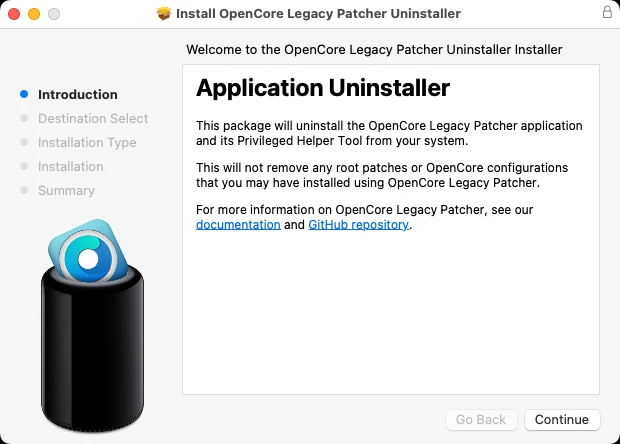
Download OpenCore-Patcher-Uninstaller.pkg from the same GitHub release and open it. We ran the 3.0.0-rc.5 uninstaller and read its script. It removes:
/Applications/OpenCore-Patcher.app                      (the symbolic link)
/Library/Application Support/Dortania/OpenCore-Patcher.app
/Library/Application Support/Dortania/Update.plist
/Library/PrivilegedHelperTools/com.dortania.opencore-legacy-patcher.privileged-helper
/Library/LaunchAgents/com.dortania.opencore-legacy-patcher*   (if present)
/Library/LaunchDaemons/com.dortania.opencore-legacy-patcher*  (if present)
What stays, which you can delete by hand if you want a clean slate:
- The empty folder
/Library/Application Support/Dortania. - App settings:
/Users/Shared/.com.dortania.opencore-legacy-patcher.plist. - Logs:
~/Library/Logs/Dortania/. - Downloaded Kernel Debug Kits in
/Library/Developer/KDKs(can be several GB). - OpenCore and the root patches. The uninstaller “does not revert any patches installed”, as the release notes say.
Dragging the app to the Trash does not remove the privileged helper; use the uninstaller.
Remove OpenCore from an EFI partition
Read this first
If the Mac runs a macOS that Apple does not support, removing OpenCore makes it unbootable (prohibited sign). Only do this when you are about to reinstall native macOS, or on a USB drive, or on a natively supported Mac. Keep a bootable installer ready.Find and mount the EFI partition
In Terminal, list disks and find the EFI partition of the drive (usuallydisk0s1for the internal disk):Terminaldiskutil list sudo diskutil mount disk0s1Delete only OpenCore's folders
In/Volumes/EFI, delete theEFI/OCfolder and theSystemfolder. On 5K iMacs, also deleteboot.efiat the root of the partition. Do not delete the wholeEFIfolder: it may contain Windows or Linux boot files (Dortania).Reset NVRAM and restart
Reset NVRAM at the next startup (Option+Cmd+P+R).
Common questions
Will uninstalling OCLP delete my files?
Can I downgrade from Sequoia to the macOS my Mac shipped with?
I removed OpenCore and now see a prohibited sign.
Do I need the uninstaller if I reinstall native macOS?
Keep going
Something wrong or out of date on this page? Email hello@oclp.dev and we will fix it (see our corrections policy).